Duplicate GBP Listing Malaysia: How to Detect and Merge Your Listings
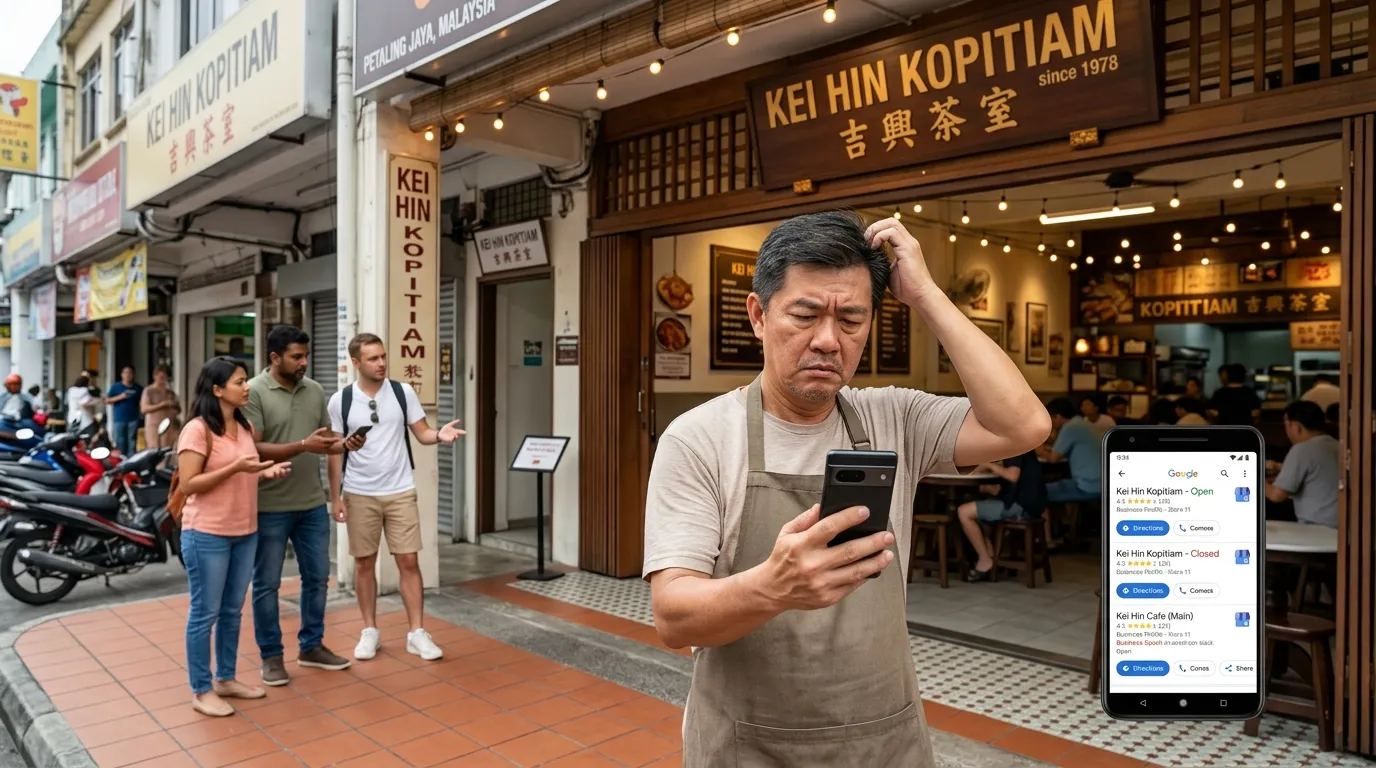
Imagine your customer types your business name into Google Maps — and suddenly, two or three different listings appear. Which one is the real one? The customer gets confused and ends up going to your competitor instead. This is the danger of duplicate GBP listings that many Malaysian business owners don't even realise is happening to their own business.
According to BrightLocal data (2024), 87% of users turn to Google to evaluate local businesses before making a purchasing decision. If your listing is split into two or more, your reputation and search ranking get split as well — reducing your chances of attracting new customers.
This step-by-step guide will help you detect, verify, and merge duplicate GBP listings in Malaysia properly, without needing any advanced technical know-how.
What You'll Need
Before starting this process, make sure you have the following ready:
- A Google account linked to your business GBP profile
- Access to Google Business Profile Manager at business.google.com
- Accurate business information — official name, address, phone number, and business category
- Roughly 30–60 minutes to complete the entire process
- A stable internet connection
Time Required & Difficulty Level
| Item | Details |
|---|---|
| Estimated time | 30–60 minutes (initial process); 1–14 days (waiting for Google's approval) |
| Difficulty level | Easy — suitable for business owners without a technical background |
| Recommended frequency | At least once every 6 months |
Why Duplicate GBP Listings Are Dangerous for Your Business
Before we get into the steps, it's important for you to understand why this issue needs to be addressed promptly.
According to Moz (2023), GBP signals account for 36% of Local Pack ranking factors on Google. When you have two listings competing against each other, Google doesn't know which one to prioritise — so both end up ranking lower than a competitor who has one complete, optimised listing.
On top of that, customer reviews get split between the listings. If you have 50 reviews on one listing and 20 reviews on another, neither one reaches its full potential to build trust with new customers.
Step 1: Find Your Duplicate Listings on Google Maps
Conduct a thorough search on Google Maps to identify all listings that may exist for your business.
Open Google Maps and search using the following methods:
- Type your full business name (e.g., "Kedai Dobi Bersih Ampang")
- Type your business phone number
- Type your full business address
- Type your business name together with the area name (e.g., "Kedai Dobi Bersih Ampang Jaya")
Take note of all listings that appear, including those that may have a slightly different spelling or an inaccurate address. Sometimes, duplicate listings are created from old data entered by third parties, or from Google users who added a listing without your knowledge.
Tip: Carry out this search in normal browsing mode (not incognito mode) as well as in incognito mode to make sure you capture any varying search results.
Step 2: Check Google Business Profile Manager for Multiple Listings
Log in to GBP Manager and check how many profiles are linked to your account.
Go to business.google.com and log in using your Google account. On the main dashboard, check:
- The number of business profiles listed
- Whether there are any unclaimed profiles with the same business name
- Profiles that may have been created by former staff or business partners using a different Google account
If you find more than one profile for the same location, this confirms that you have a duplicate listing issue that needs to be resolved.
GBPAuditLab's internal data shows that 23.73% of Malaysian businesses have unclaimed profiles — meaning nearly one in four local businesses potentially has a rogue listing that isn't controlled by the rightful business owner.
Step 3: Claim Any Unclaimed Listings (If Applicable)
Claim all listings associated with your business before proceeding with the merging process.
If you find an unclaimed listing on Google Maps:
- Click on that listing
- Scroll down and look for the "Claim this business" or "Own this business?" button
- Follow Google's verification process — usually via phone call, SMS, postcard, or video recording
- Once claimed, you'll have full control over that listing
This step is important because you cannot request a merge for a listing you don't own. Google requires you to be the verified owner of both listings before the merge process can proceed.
Step 4: Decide Which Listing to Keep
Choose one primary listing that will become your official business profile.
Pick the listing that has:
- More reviews and a higher rating
- More complete information — name, address, phone number, operating hours, photos, and description
- A longer history on Google (older listings are generally more trusted by Google's algorithm)
- More photos uploaded by both the owner and customers
Make sure the listing you choose has NAP (Name, Address, Phone) information that is consistent with what appears on your website, social media, and other business directories.
Step 5: Update and Complete Your Primary Listing
Ensure your primary listing is 100% complete before requesting a merge.
Google states that complete and accurate GBP information improves local search ranking (Google, 2024). However, GBPAuditLab data reveals a concerning reality among Malaysian businesses:
- 100% of businesses audited had incomplete descriptions
- 79.66% of businesses had no website link
- 5.08% of businesses had fewer than 5 photos
Before proceeding with the merge, complete the following on your primary listing:
- Business name — use the exact official name without unnecessary added keywords
- Address — ensure the address format follows Malaysia Pos standards
- Phone number — use an active local number
- Operating hours — including special hours for public holidays
- Business category — select a primary category and relevant additional categories
- Business description — write a description of 250–750 characters that explains your services and business value
- Photos — upload at least 10 high-quality photos including your logo, signage, and business premises
Step 6: Request a Merge Through Google
Submit your merge request to Google using the correct channel.
There are two situations you may find yourself in:
Situation A: Both Listings Are Under the Same Account
If both listings are under the same GBP Manager account:
- Log in to business.google.com
- Select the listing you do not want to keep (the duplicate listing)
- Go to "Info" → "Advanced information"
- Look for the option to mark the listing as a duplicate or contact Google Support
- Explain your situation and include the ID or URL of both listings
Situation B: Listings Are Under Different Accounts or the Listing Is Unclaimed
If the duplicate listing is under a different account or is an automatically generated listing by Google:
- Go to Google Maps and find the duplicate listing
- Scroll down on the left panel and click "Suggest an edit"
- Select "Remove this place"
- Choose the reason "This place doesn't exist" or "Duplicate of another place"
- Enter the URL or name of the correct primary listing as a reference
This process may take between 3 to 14 days depending on Google's review. In some cases, you may need to contact Google Support directly via support.google.com/business to speed up the process.
Step 7: Monitor the Request Status and Confirm the Merge
Check your listing status regularly after submitting your merge request.
Once the merge is successfully completed:
- All reviews from both listings will be combined into the primary listing
- Photos from the duplicate listing may be transferred automatically
- Your search ranking should improve within a few weeks
If your request is rejected or receives no response, contact Google Support directly and include proof of business ownership such as your SSM registration documents or a utility bill in your business name.
To monitor changes to your listing, check the "Notifications" section in GBP Manager regularly. You can also enable email notifications so that any changes to your profile are flagged to you straightaway.
Step 8: Run a Thorough GBP Audit to Prevent Recurring Issues
Regular GBP audits are the best way to stop duplicate listing issues from coming back.
Duplicate listing issues rarely occur in isolation. They're often accompanied by other problems such as inconsistent information, missing reviews, or profiles that aren't fully optimised. All of this ultimately hurts your search ranking and customer trust in your business.
GBPAuditLab provides a GBP audit tool built specifically for Malaysian business owners. In just a few minutes, you can get a full report on the status of your GBP profile — including detecting potential duplication issues, information completeness, and optimisation opportunities that are often overlooked.
👉 Run your free GBP audit now at gbpauditlab.com and make sure your business looks professional, complete, and easy to find by customers all across Malaysia.
Steps Summary
| Step | Action |
|---|---|
| 1 | Find duplicate listings on Google Maps |
| 2 | Check GBP Manager for multiple listings |
| 3 | Claim any unclaimed listings |
| 4 | Decide which listing to keep as the primary |
| 5 | Complete your primary listing information |
| 6 | Request a merge through Google |
| 7 | Monitor status and confirm the merge |
| 8 | Run a thorough GBP audit |
Further Reading
If you're facing other issues related to your business GBP profile, the following guides may come in handy: