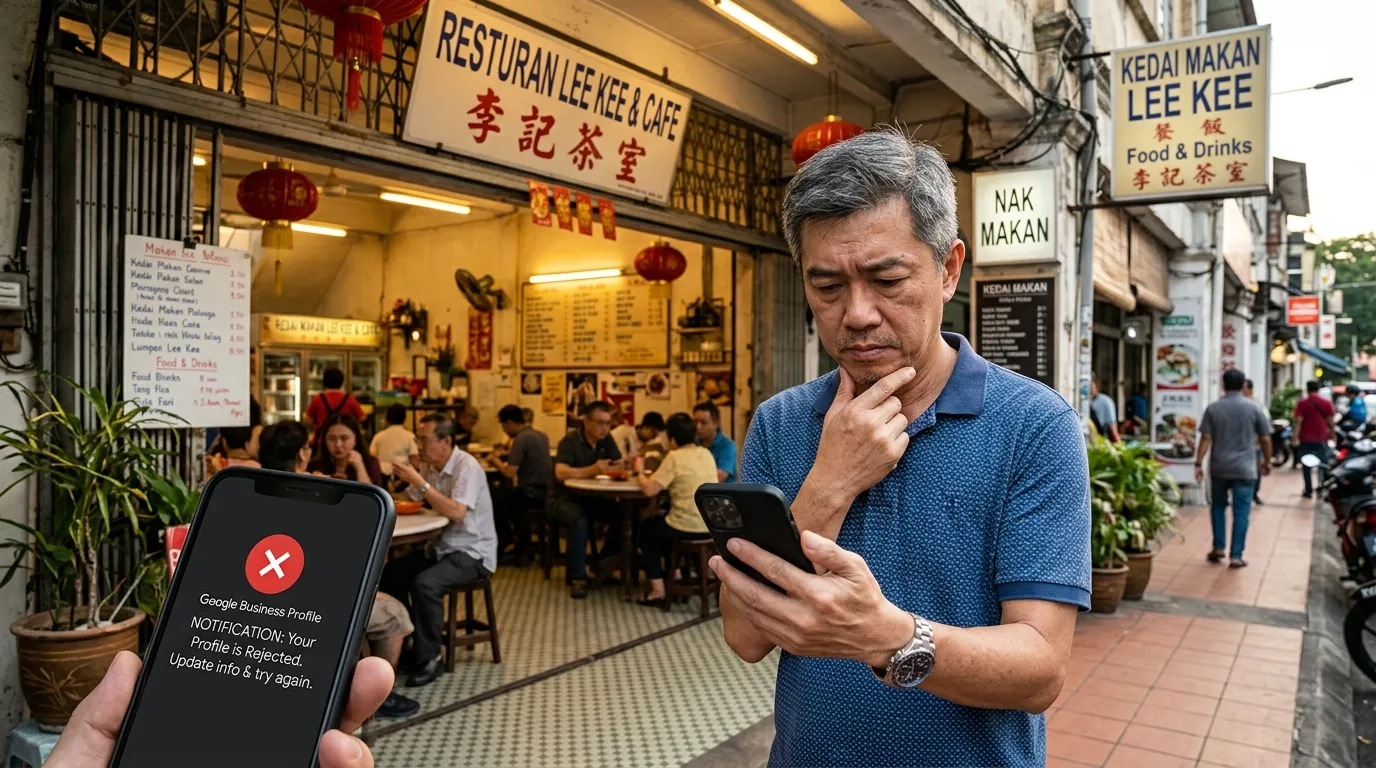
GBP Photos Rejected — Why It Happens and How to Fix It
You've just uploaded the latest photos of your shop or products to your Google Business Profile (GBP), but they don't appear — or worse, you receive a notification that your photos have been rejected. This situation is more common than you'd think, and it can negatively impact customer trust as well as your business's local search ranking in Malaysia.
According to BrightLocal (2024), 87% of users turn to Google to evaluate local businesses before making a purchase decision. This means that complete, high-quality photos on your GBP profile are not just decorative — they are a serious part of your digital marketing strategy. This article will walk you through the main reasons why GBP photos get rejected and the exact steps to resolve the issue.
What You'll Need
Before getting started, make sure you have the following:
- A Google Account linked to your business GBP
- Admin access to your Google Business Profile
- New photos you want to upload (in JPG, PNG, or TIFF format)
- A device — laptop, desktop computer, or smartphone
- A stable internet connection
Time Required: 15 – 30 minutes Difficulty Level: Easy (Suitable for beginners)
Why Are GBP Photos Rejected? Main Causes
Before we get into the steps, it's important to understand why rejections happen in the first place. Google has strict guidelines to ensure the quality and appropriateness of content across all business profiles. Here are the most common causes:
1. File Size or Format Does Not Meet Requirements
Google sets minimum and maximum limits for photos uploaded to GBP. If your image file is too small, too large, or in an unsupported format, it will be automatically rejected.
Google's minimum requirements for GBP photos:
- File size: Between 10 KB and 5 MB
- Minimum resolution: 250 x 250 pixels
- Recommended resolution: 720 x 720 pixels and above
- Accepted formats: JPG, PNG, TIFF
2. Photo Content Violates Google's Policies
Google will reject photos that contain the following:
- Sexual or obscene imagery
- Violent or graphic content
- Prominent third-party watermarks or logos
- Excessive promotional text (e.g., "50% DISCOUNT!" overlaid on the image)
- Photos unrelated to your business
- Photos containing personal information such as phone numbers or email addresses within the image itself
3. Low-Quality or Blurry Photos
Photos that are heavily pixelated, blurry, dark, or of poor visual quality will often be rejected by Google's automated system. This includes photos taken in very poor lighting or images that have been cropped inappropriately.
4. Problematic Image Metadata
In some cases, metadata embedded within an image file (such as corrupted EXIF data or metadata containing inappropriate information) can trigger an automatic rejection by Google's system.
5. GBP Profile Is Under Review or Suspended
If your GBP profile is currently being reviewed by Google, or if there are other compliance issues on your profile, all updates including photos may be delayed or rejected until those issues are resolved.
How to Fix It: A Step-by-Step Guide
Step 1: Check the Photo Status in Your GBP
Log in to your Google Business Profile account and check the photos section to understand the current status.
- Open business.google.com and log in with your Google account.
- Select your business from the list if you have more than one profile.
- Click on the "Photos" menu in the left panel.
- Check whether there are any rejection notifications or photos that are not appearing.
Important Note: Data from GBPAuditLab shows that 5.88% of Malaysian businesses audited have fewer than 5 photos on their GBP profile. This is a concerning figure given that photos play a critical role in attracting customers.
Step 2: Check the Technical Specifications of Your Photos
Make sure the photos you want to upload meet all of Google's technical requirements before trying again.
- Right-click on your image file and select "Properties" (Windows) or "Get Info" (Mac).
- Check the file size — make sure it is between 10 KB and 5 MB.
- Check the image dimensions — ensure it is at least 720 x 720 pixels.
- Make sure the file format is JPG or PNG (most suitable for GBP).
How to resize photos easily:
- Use a free tool like Canva (canva.com) to resize and optimise your photos.
- For file compression, use TinyPNG (tinypng.com) to reduce file size without compromising visual quality.
Step 3: Review Photo Content Against Google's Policies
Revisit each rejected photo and compare its content against Google's policy guidelines.
Ask yourself the following questions for each photo:
- Is this photo directly related to my business? (premises, products, team, or services)
- Is there excessive promotional text in the photo?
- Is this photo clear, well-lit, and not blurry?
- Is this photo free from sensitive or inappropriate content?
- Is this photo original and not copied from another website?
According to Google (2024), complete and accurate GBP information — including quality photos — directly improves your local search ranking. This is supported by data from Moz (2023) which found that GBP signals contribute to 36% of ranking factors in the local pack.
Step 4: Clean Up Your Photo Metadata
Remove any problematic metadata from your image files before re-uploading.
- On Windows: Right-click the image file → "Properties" → "Details" tab → Click "Remove Properties and Personal Information" → Select "Remove the following properties from this file" → Select all → OK.
- On Mac: Open the photo in the "Preview" app → Export as a new file in JPG or PNG format — this will strip most of the metadata.
- Online: Use tools like ExifPurge or Exif Remover to clean up metadata for free.
Step 5: Check the Overall Status of Your GBP Profile
Ensure your GBP profile does not have other issues that may be indirectly causing photo rejections.
- In GBP, check whether there are any warnings or notifications at the top of the dashboard.
- Check whether your profile has been fully verified — unverified profiles may face restrictions when uploading content.
- Verify that basic information such as your business name, address, and phone number is accurate and consistent.
Insight from GBPAuditLab: Of the 17 audits conducted in the past 90 days, 100% of Malaysian businesses audited were found to have no complete profile description. If key signals like the description are neglected, this can negatively impact the overall performance of your GBP profile, including how Google processes photo updates.
Step 6: Re-Upload Your Corrected Photos
Re-upload your improved photos following the steps above.
- In GBP, click "Add Photo".
- Select the appropriate category for your photo:
- Logo — Your business's official logo image - Cover Photo — The main image representing your business - Photo — General photos of your business, products, or premises
- Select the optimised image file from your device.
- Wait for the upload to complete and check whether the photo is successfully displayed.
Tip: Upload photos gradually — avoid uploading too many photos at once as this may trigger Google's automated review system.
Step 7: Contact Google Support If the Problem Persists
Reach out to Google's support team if your photos are still being rejected even after following all the steps above.
- Go to support.google.com/business.
- Click "Contact Us".
- Select the issue related to photos or images.
- Choose your preferred contact method — live chat or email is usually the quickest.
- Explain your issue clearly, including the type of photos that were rejected and the steps you have already taken.
Final Step: Run a Full GBP Audit with GBPAuditLab
Rejected photos may be just one of many issues present on your GBP profile. Based on our audit data, the average GBP audit score for Malaysian businesses is only 71.4 out of 100 — and most business owners are unaware of these weaknesses until it is too late.
By running a comprehensive GBP audit through GBPAuditLab, you can:
- Identify all issues affecting your GBP profile's performance
- Get a detailed report covering photos, descriptions, operating hours, and more
- Understand where your business stands compared to local competitors
- Receive concrete recommendations to improve your profile score
🔍 Run Your Free GBP Audit Now at GBPAuditLab →
Remember: A complete and optimised GBP profile not only helps customers find you — it also builds trust and increases your business's chances of appearing in Google's local search results. Don't let small technical issues like rejected photos hold back your business growth.
Further Reading
If you're experiencing other issues with your GBP profile, the following articles may be helpful: