
GBP Showing Wrong Address — How to Fix It Easily
Imagine a new customer wanting to visit your shop. They open Google Maps, search for your business name, and follow the GPS directions — only to arrive at the wrong location. This situation happens more often than you'd think. An incorrect or incomplete address in your Google Business Profile (GBP) doesn't just waste your customers' time; it can permanently damage your business reputation.
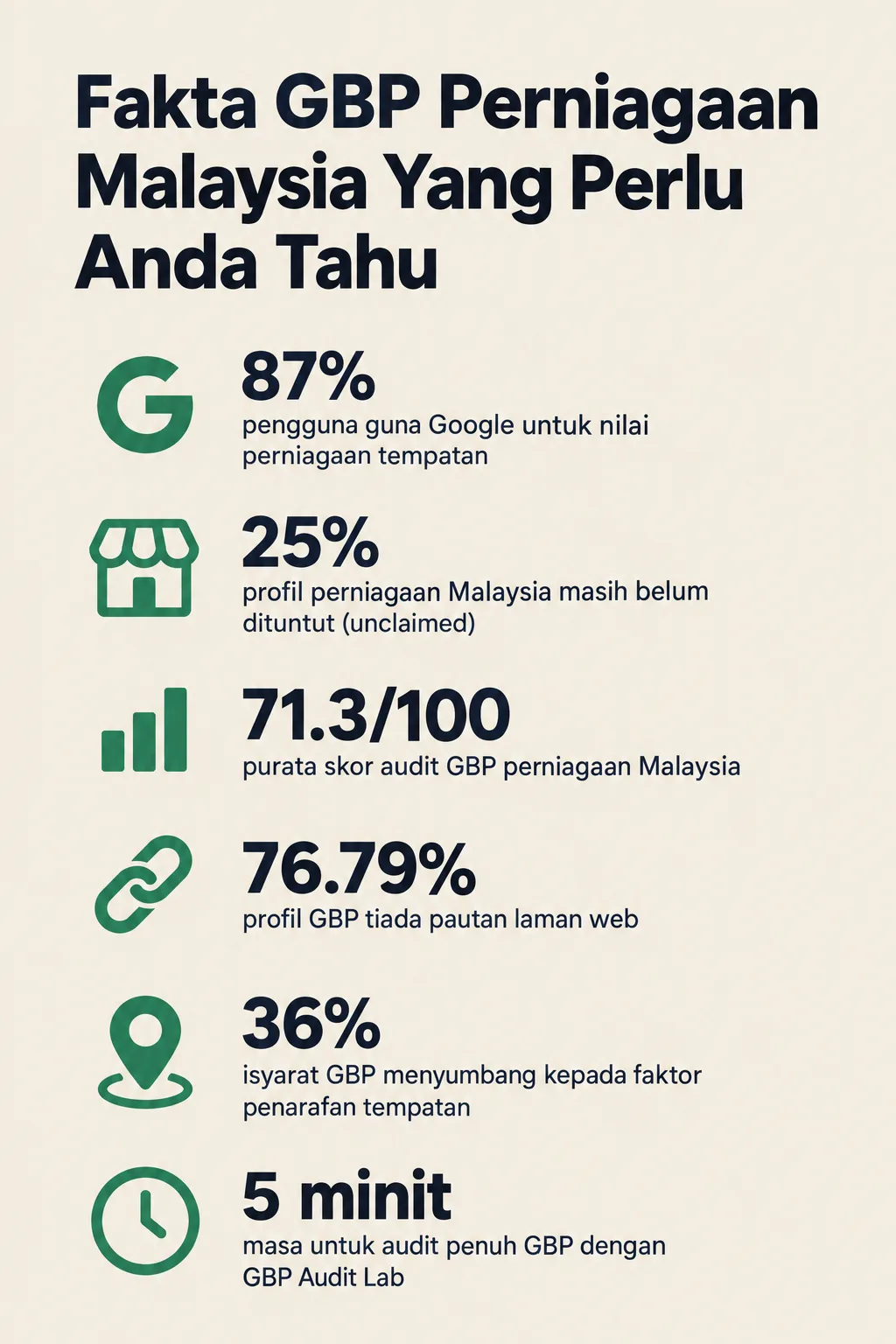
According to a BrightLocal study (2024), 87% of users rely on Google to evaluate local businesses before making a purchase decision. This means having an accurate address in your GBP isn't just a convenience — it's a critical business necessity.
This step-by-step guide will help you identify the root cause of a wrong address in your GBP and how to fix it systematically, even if you're a complete beginner just starting out with digital marketing.
What You'll Need
Before starting the correction process, make sure you have the following ready:
- The Google account used to register your business GBP
- Full Owner access to the GBP profile — not just Manager access
- Your complete and correct business address, including unit number, floor, building name, street name, postcode, city, and state
- Supporting documents such as utility bills, tenancy agreement, or business licence (required if Google requests re-verification)
- A stable internet connection
Time Required: 15–30 minutes for a basic correction. If Google requires re-verification, the process may take 3–14 business days.
Difficulty Level: Easy (0/100) — Suitable for SME owners with no technical background.
Step 1: Confirm That Your GBP Address Is Actually Wrong
Check your GBP profile from the customer's perspective before making any changes.
Open Google Maps in incognito mode or use another device that is not logged into your Google account. Search for your business name and inspect the address displayed to the public — is it accurate in terms of number, street name, postcode, and area?
This step is important because sometimes business owners edit the address in their GBP dashboard, but the change has not yet been approved by Google and is still under review. By checking from the customer's point of view, you get an accurate picture of what they actually see.
Take note of exactly which part of the address is wrong — is it the street number, postcode, or area name? This information is crucial for the next steps.
Step 2: Log In to Google Business Profile Manager
Access your GBP dashboard through the official channel.
Go to business.google.com and log in using the Google account registered as the Owner of your business profile. If you have more than one business profile, make sure you select the correct one from the list displayed.
Do note that only the Owner and Primary Owner have permission to edit core information such as the address. If you are only registered as a Manager, you will need to ask the original owner to make the changes or transfer ownership to you first.
Based on data from GBP Audit Lab across 56 audits conducted over the past 90 days, 25% of Malaysian business profiles are still unclaimed. This means one in four businesses has no control over the information displayed to customers — including their address.
Step 3: Navigate to the Info Section
Locate the address settings within your GBP profile.
In the GBP dashboard, click on your business name to open the profile. Then click "Edit profile" or the pencil icon displayed near your business name. This will open the business information panel.
There are two ways to access these settings:
- Via the main Google Search page — Search for your business name on Google, then click "Edit profile" displayed in the GBP management panel above the search results.
- Via business.google.com — Click on the business profile, then select the "Info" or "Edit profile" tab.
Both methods lead to the same place. Choose whichever is more convenient for you.
Step 4: Edit and Update the Wrong Address
Correct the address carefully and thoroughly.
Click on the address section in the information panel. You will be able to edit each component of the address separately:
- Street number and name — Make sure there are no spelling errors or transposed numbers
- Area/Township/City — Use the area name recognised by Google Maps
- Postcode — An incorrect postcode is the main cause of GPS navigation issues
- State — Select from the dropdown list provided
- Country — Make sure it is set to Malaysia
Important tip: If your business operates from home or does not have a physical premises that customers can visit, you may choose to hide the address and only display the service area instead. This is better than showing an address that confuses customers.
Once you have finished editing, click "Save". Google will begin processing your changes.
Step 5: Understand Google's Review Process
Wait and monitor the status of your changes.
After you save the new address, Google will not display the changes immediately. Instead, it will go through an automated review process that can take anywhere from a few hours to 3 days in most cases. In certain situations — especially if the new address differs significantly from the old one — Google may require re-verification via postcard, phone call, or video.
This is Google's security mechanism to prevent irresponsible parties from altering someone else's business information. While it can require some patience, this process protects your business in the long run.
While waiting, you can check the status of your changes in the GBP dashboard. If the status shows "Pending" or "Under review", it means Google is still processing the change — this is normal.
To understand more about situations where GBP information changes without your knowledge, read our article: Why GBP Info Changes on Its Own and How to Stop It.
Step 6: Check the Pin Marker on Google Maps
Ensure your map pin position matches the correct address.
This is a step that is often overlooked by business owners. Even if the text address in your GBP is correct, the map pin on Google Maps may still be in the wrong location — and this is what determines where GPS directs your customers.
In your GBP edit panel, look for the "Location" section. You will see a small map with a pin indicating your business location. If the pin is not accurate, drag and drop it to the correct position on the map.
For businesses located within building complexes, industrial areas, or densely packed residential areas, this step is absolutely critical. An accurate pin ensures that customers using GPS navigation will arrive right at your premises door, not somewhere else within the same area.
Step 7: Check NAP Consistency Across Platforms
Ensure your name, address, and phone number (NAP) are consistent across all online platforms.
Inconsistent NAP information between your GBP, website, Facebook, business directories, and other platforms can confuse Google — and ultimately affect your ranking in local search results. According to Moz (2023), GBP signals account for as much as 36% of local ranking factors, making the accuracy of this information extremely important.
Check the following platforms and ensure your address is exactly the same:
- Official business website — Especially the "Contact Us" page
- Facebook Business Page
- Business directories such as Yellzz, 118 Malaysia, and others
- Other social media profiles such as Instagram and TikTok
If you find any inconsistencies, update each platform one by one until all of them match the correct address you have set in your GBP.
Step 8: Check for Duplicate Listings
Identify whether there are duplicate GBP profiles causing confusion.
Sometimes, the wrong address problem does not originate from your main profile, but from a duplicate GBP listing that exists unintentionally — perhaps created by another Google user, or from a previous time when you registered more than once. Duplicate profiles may display an old or incorrect address to customers.
To detect this issue, search for your business name in Google Maps and see whether there is more than one entry for your business. If there is, you will need to merge or remove the duplicate listing.
Read our full guide on this: Duplicate GBP Listing — How to Detect and Merge.
Step 9: Run a Comprehensive GBP Audit with GBP Audit Lab
Audit your GBP profile thoroughly to uncover all issues that may have been missed.
Fixing the address is a good step, but it may be just one of several issues affecting your GBP's performance. Internal data from GBP Audit Lab shows that the average audit score of Malaysian business GBP profiles is 71.3/100 — meaning there is still plenty of room for improvement.
Among the other issues commonly found:
- 76.79% of profiles do not have a website link
- 5.36% of businesses have fewer than 5 photos in their profile
- 3.57% of businesses do not list their operating hours at all
Each of these issues can affect your customers' ability to find and contact your business.
By using GBP Audit Lab, you can run a comprehensive audit of your business GBP profile in under 5 minutes. The tool will pinpoint exactly which parts of your profile need attention — including address issues, missing photos, missing operating hours, and much more.
Try your free audit today at gbpauditlab.com and find out your business GBP's real score.
Frequently Asked Questions
For more information on resolving other GBP issues, visit our master guide: GBP Troubleshooting Malaysia — All Problems & Solutions.
Summary
A wrong address in your Google Business Profile is a problem that can be resolved, but it requires immediate action. Every day your address remains incorrect, potential customers may miss the opportunity to find your business — and your competitors may be the ones to benefit.
Follow the eight steps outlined in this guide, starting from confirming the problem, editing the address in GBP, ensuring the map pin is accurate, aligning your NAP across all platforms, all the way through to running a comprehensive audit to make sure no other issues have been overlooked.
Remember: Google itself confirms that complete and accurate GBP information improves your ranking in local search. By ensuring your address is correct today, you are investing in your business's long-term visibility in front of the customers who matter most — those who are nearby and actively searching for the services you offer.