How to Create a QR Code to Make It Easy for Customers to Leave a Review
Many business owners in Malaysia have started using QR codes to make it easier for customers to leave reviews on Google. It's a smart move — but there's one big mistake that's often overlooked. Your QR code may already be ready, customers are scanning it, but the reviews they leave aren't giving your business maximum impact in Google search rankings. The main reason? Your Google Business Profile (GBP) is still incomplete or not optimised.
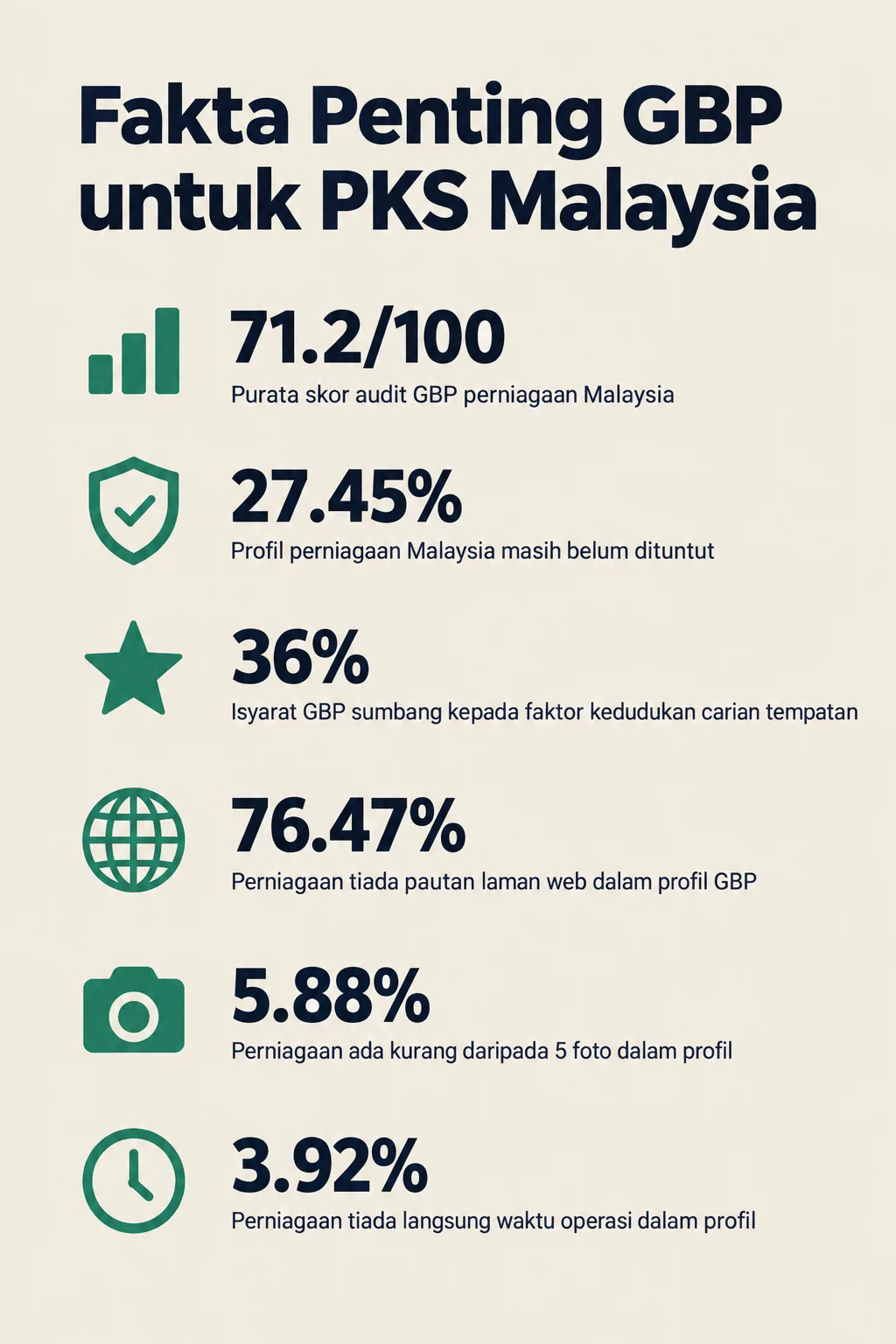
According to GBPAuditLab's internal data from 51 audits over the past 90 days, the average GBP profile audit score for Malaysian businesses is just 71.2/100. This means even if you manage to collect hundreds of reviews, an incomplete profile can hold back the true potential of those reviews. This article will guide you step by step — from how to create a Google Review QR code, all the way to making sure your GBP profile is solid enough to make every review count.
What You'll Need
Before getting started, make sure you have the following:
- A Google account registered under your business name
- A Google Business Profile (GBP) that has been claimed and verified
- Your business's unique Google Review link
- Access to a printer or printing service to print the QR code
- About 30 to 45 minutes to complete the whole process
⚠️ Important note: Based on GBPAuditLab data, 27.45% of Malaysian business profiles have not yet been claimed. If your profile hasn't been claimed, the QR code you create won't direct customers to the correct review page. Make sure your profile is claimed first.
Time Required & Difficulty Level
- Time: 30 – 45 minutes
- Difficulty Level: Easy (suitable for beginners)
- Cost: Free (excluding printing costs)
Step 1: Get Your Business's Google Review Link
Find and copy the unique review link dedicated to your GBP profile.
This is the most important step. Every business registered on Google Business Profile has a special link that takes customers directly to the form to leave a review. Without the correct link, your QR code will only bring customers to a general page — not where they can go ahead and give stars and write a review.
How to get your link:
- Log in to Google Business Profile Manager
- Select your business profile
- Click the "Ask for reviews" button (the label may vary depending on your display language)
- Google will display your special link — copy it
This link usually starts with https://g.page/r/... or https://search.google.com/local/writereview?placeid=...
Save this link — you'll be using it in the next step.
Step 2: Create a QR Code Using a Free Tool
Generate a QR code from your Google Review link using an online QR code generator.
There are several free tools you can use:
- QR Code Generator (qr-code-generator.com)
- GoQR.me (goqr.me)
- Canva (canva.com) — the best option if you want to design a more attractive QR code with your business logo
Steps:
- Open any of the QR code generator tools above
- Paste your Google Review link into the input box
- Choose a file format — PNG or SVG is recommended for good print quality
- Download your QR code
Pro tip: Use Canva to add your business logo in the centre of the QR code, your brand colours, and text like "Scan to leave a review!" — this makes the QR code more attractive and trustworthy to customers.
Step 3: Test Your QR Code Before Printing
Scan and test your QR code before printing it in large quantities.
This is a step that many business owners skip, and the result is hundreds of printed QR codes that don't work. A waste of time and money!
How to test:
- Print or display your QR code on screen
- Use your smartphone — open the camera or a QR code reader app
- Scan the QR code
- Make sure it takes you directly to the Google review form for your business
- Try it with at least two different devices to make sure it works
If the QR code takes you to the wrong page or doesn't work, repeat Step 1 and make sure you're using the correct link.
Step 4: Print and Place Your QR Code in Strategic Locations
Print and place your QR code in spots that are easy for customers to see and access.
QR code placement is key to a high usage rate. Customers need to see the QR code at the most appropriate moment — that is, when they've just finished receiving your service or product and are still feeling satisfied.
Recommended locations:
- Payment counter — the most strategic spot since customers stop here
- Dining tables (for restaurants) — customers have free time while waiting or after their meal
- Product bags or packaging — QR codes can be printed on stickers or small cards
- Receipts — add the QR code to the bottom of your printed receipts
- Exit door — a final reminder before customers leave
Recommended size: Minimum 3cm x 3cm to ensure the QR code is easy to scan.
Step 5: Add a Short Instruction Next to the QR Code
Write a brief instruction beside the QR code so customers know what to do.
Don't assume all customers know how to use a QR code. Especially for older customers, clear instructions are very helpful. On top of that, good instructions also provide context — explaining why you're asking them to do it.
Example text you can use:
"Happy with our service? Scan this QR code and leave us a review on Google. It only takes 1 minute and means a lot to us!"
Or a shorter version:
"Scan to leave a Google review — thank you!"
Text that is simple, friendly, and non-pushy will get a better response rate compared to instructions that are too lengthy.
Step 6: Make Sure Your GBP Profile Is Complete — This Is the Part Most People Miss
Check and complete your Google Business Profile before or after creating the QR code.
This is the most critical part, yet the most commonly overlooked. According to BrightLocal (2024), 87% of consumers use Google to evaluate local businesses. This means when your customers scan the QR code and open your GBP profile, they're not just leaving a review — they're also looking at your profile as a whole.
If your profile is incomplete, here's what happens:
- Customers feel uncertain and may close the page without leaving a review
- Reviews that are left don't deliver maximum SEO impact
- Your ranking on Google Maps and local search remains low
According to Moz (2023), GBP signals contribute 36% of local search ranking factors — making it one of the most important factors in local SEO.
Check the following:
Business Name, Address & Phone Number (NAP)
Make sure this information is accurate and consistent. Your business name must match exactly what appears on your physical signage.
Business Category
Choose the primary category that most accurately describes your business. This directly influences which searches will surface your business. Many business owners choose categories that are too general or simply wrong.
Operating Hours
GBPAuditLab data shows that 3.92% of businesses have no operating hours at all in their profile. This is a basic mistake that can leave customers confused and erode their trust. Make sure your operating hours are up to date, including public holiday hours.
Business Photos
As many as 5.88% of businesses in our data have fewer than 5 photos. Google recommends at least 10 high-quality photos covering your interior, exterior, products, and team.
Business Description
Write a clear, informative description that includes keywords relevant to your business. You're allowed up to 750 characters — make full use of that opportunity.
Website Link
Our data shows a worrying figure — 76.47% of businesses have no website link in their GBP profile. Even if you only have a simple website, add the link. It boosts credibility and gives Google more information about your business.
According to Google (2024), complete and accurate GBP information directly improves rankings in local search.
Step 7: Audit Your GBP Profile with GBPAuditLab
Run a full audit of your GBP profile to identify gaps that need to be addressed.
You've created the QR code, put it up at your premises, and customers are starting to scan. The final step — and the most important one — is making sure your GBP profile is truly in its best shape to maximise the impact of every review received.
GBPAuditLab provides a comprehensive GBP profile audit, specifically for small and medium enterprises (SMEs) in Malaysia. Within minutes, you'll get a full report showing:
- Which sections of your profile are incomplete
- Your overall profile score compared to other businesses
- Specific recommendations to improve your local search ranking
👉 Try a free audit at GBPAuditLab.com now and make sure your GBP profile is ready to receive maximum impact from every customer review.
Important Reminder: Don't Violate Google's Policies
When encouraging customers to leave reviews, make sure you do not engage in "review gating" — the practice of filtering customers and only asking for reviews from those you know will give 5 stars. This is a violation of Google's policies and can result in your profile being penalised.
To understand more about what Google allows and doesn't allow, read our article: Review Gating — What It Is and Why Google Doesn't Allow It.
If you'd like to know how to get more reviews organically and effectively, visit: How to Get More Google Reviews Organically in Malaysia.
Summary
Creating a QR code for Google Reviews is a simple and effective step to encourage customers to leave reviews. However, the effectiveness of your QR code depends entirely on the strength of the GBP profile behind it. Lots of reviews on an incomplete profile is like pouring water into a leaky bucket — the effort is there, but the results aren't maximised.
Follow the seven steps shared in this article, and most importantly — audit your GBP profile today at GBPAuditLab.com to make sure every review you collect delivers real impact to your business's ranking and reputation on Google.