
How to Register Google Business Profile from Scratch (2025)
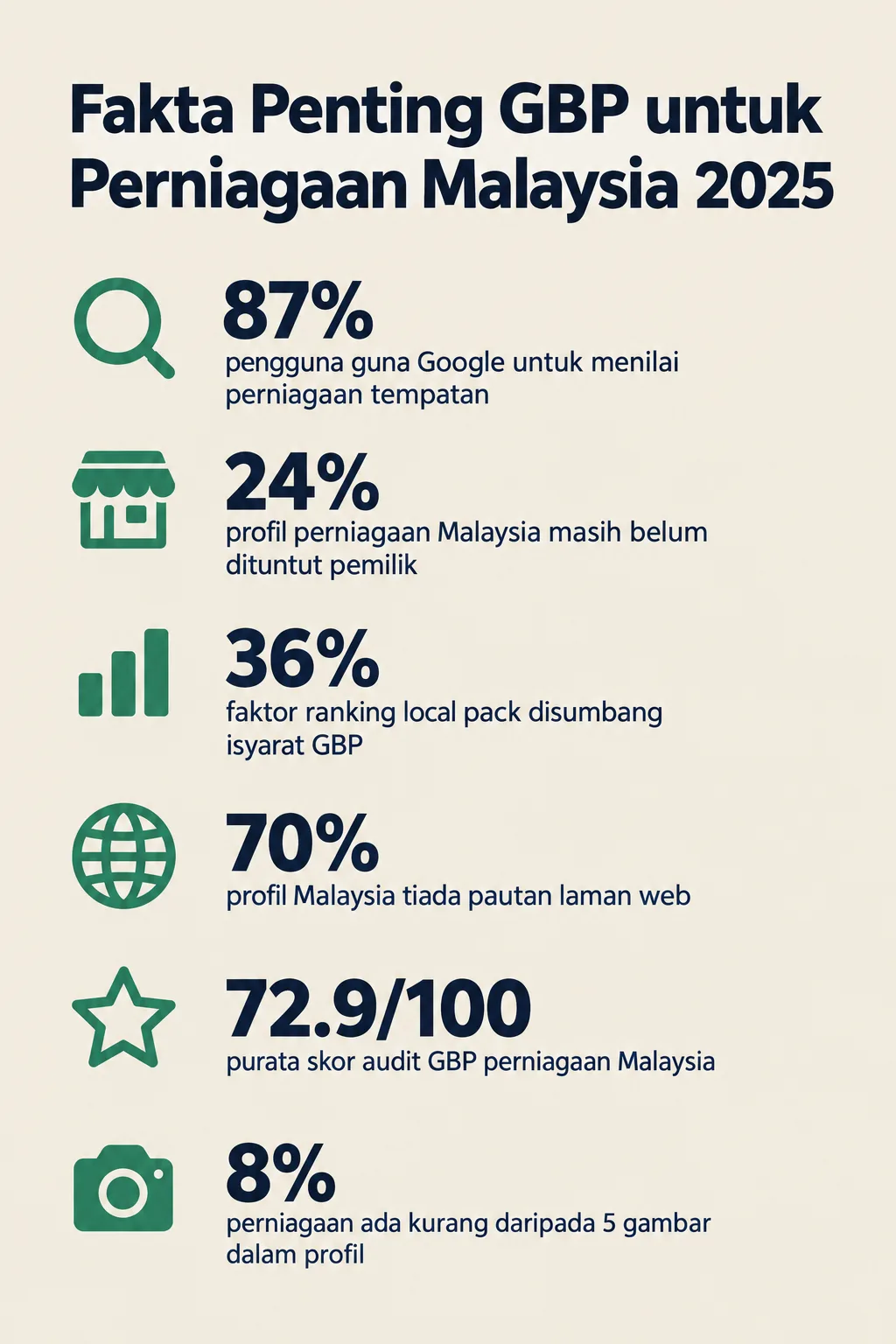
If you're an SME owner in Malaysia, the biggest opportunity to be found by local customers is in one place — Google Search and Google Maps. According to a BrightLocal study (2024), 87% of users use Google to evaluate local businesses before making a purchase decision. However, based on GBP Audit Lab audit data from 50 of the most recent audits over the past 90 days, 24% of Malaysia business profiles have yet to be claimed by their owners. This means many business owners are losing customers every day without even realising it.
This guide will walk you through step by step to register your Google Business Profile (GBP) from scratch — no technical knowledge required.
What You Need Before You Start
Before beginning the registration process, prepare the following:
- Google account (Gmail) that is active — use a business email if you have one
- Official business name — the name that appears on your signage or business documents
- Full and accurate business address (or service area if you operate without a fixed premises)
- Active business phone number
- Business website URL (if you have one)
- Operating hours for your business from Monday to Sunday
- Business category — for example, "Bakery", "Car Workshop", or "Dental Clinic"
Time required: Approximately 15–30 minutes to complete basic registration. The verification process may take 3–7 working days depending on the method chosen.
>
Difficulty level: Easy — suitable for beginners with no technical background.
Step 1: Log In to Google and Open Business Profile Manager
Go to business.google.com and click the "Manage now" button.
You will be prompted to log in using your Google account. Make sure you use the account that will be used permanently to manage your business — not a personal account shared with family members. This is important because all notifications, customer reviews, and audit information will be sent to that account.
If you do not yet have a Google account, click "Create account" and follow the Gmail registration process first.
Step 2: Enter Your Business Name
Type your business name in the search box provided.
Google will display suggested business names that already exist in their database. Take note:
- If your business name is already listed, this means your profile already exists but may not have been claimed yet. Click on the name and follow the claiming process.
- If your business name is not listed, click "Add your business to Google" to create a new profile.
Do not add keywords or locations to your business name (for example, "Best Cheapest Bakery Auntie KL"). This violates Google's guidelines and can cause your profile to be suspended or removed.
Step 3: Choose Your Primary Business Category
Select the category that most accurately describes your business.
Category is one of the most important factors in local search ranking. According to Moz (2023), GBP signals contribute 36% of local pack ranking factors — and category makes up a large portion of those signals.
Type a keyword related to your business and select the most specific category. For example:
- Choose "Bakery" rather than just "Food"
- Choose "Automotive Repair Shop" rather than just "Automotive"
You can add additional categories later in the profile settings. For more guidance on choosing the right category, refer to our article: How to Choose the Right GBP Category — Malaysia Guide.
Step 4: Determine Whether You Have a Physical Premises
Determine whether your business has a physical location that customers can visit.
Google will ask: "Do you want to add a location customers can visit, like a store or office?"
- Yes — if you have a shop, office, or fixed premises that customers can visit
- No — if you run a home-based business or a service that goes to customers (for example, a plumber, delivery service)
If you run your business from home and do not want your home address displayed publicly, select "No" and set your service area only. For more detailed guidance on this, read: How to Set Up GBP for Home-Based Businesses in Malaysia.
Step 5: Enter Your Business Address or Service Area
Fill in your business location information accurately and completely.
If you choose to display a physical address:
- Enter the unit number, street name, housing area, postcode, city, and state
- Ensure the address format follows Malaysian standards (for example: No. 12, Jalan Mawar 3, Taman Sri Maju, 47500 Subang Jaya, Selangor)
If you choose a service area:
- Specify the areas or towns you serve (for example: Kuala Lumpur, Petaling Jaya, Shah Alam)
- You can add up to 20 service areas
Address accuracy is critical. Google uses this information to determine whether your profile appears in "near me" searches — if the address is inaccurate, customers will not be able to find you.
If your business has multiple branches, read our guide: How to Add Multiple Locations in One GBP Account.
Step 6: Enter Your Phone Number and Website Address
Complete your business contact information.
Enter an active Malaysian phone number in the standard format (for example: 03-1234 5678 for a fixed line, or 012-345 6789 for a mobile number).
For your website, enter the full URL beginning with https://. However, GBP Audit Lab data shows that 70% of Malaysia business profiles do not have a website link. If you do not yet have a website, this is an opportunity to differentiate your business from competitors — even if it is just a simple page describing your services.
Step 7: Set Your Business Operating Hours
Enter the accurate operating hours for each day of the week.
Click on each day and set the opening and closing times. If you are not operating on a particular day, toggle it to "Closed".
This is a step that is often overlooked — our audit data found that 4% of businesses have no operating hours at all in their profiles. This is a significant loss because customers who want to contact or visit your premises will have to guess your operating hours, and this increases the likelihood of them turning to a competitor instead.
Make sure your operating hours are updated during public holidays or festive seasons.
Step 8: Write Your Business Description
Write a brief description explaining what your business offers.
You have a limit of 750 characters. Use this space to:
- Describe your main products or services
- State your business's unique value proposition (USP)
- Mention the areas or communities you serve
- Include relevant keywords naturally (not just a list of keywords)
Example of a good description:
"We provide fresh seafood delivery services direct from Kuala Terengganu fishermen to the whole of Klang Valley. Established since 2018, we prioritise product freshness and delivery punctuality to ensure the satisfaction of our loyal customers."
Avoid stuffing the description with repetitive keywords — Google may flag this as spam and it gives customers an unprofessional impression.
Step 9: Upload Business Photos
Add at least 3–5 high-quality photos to your profile.
According to Google (2024), complete and accurate GBP information improves local search ranking. Photos are an important part of that profile completeness. However, GBP Audit Lab data reveals that 8% of businesses have fewer than 5 photos — a weakness that can affect customer confidence.
Upload the following photos:
- Business logo — use a minimum size of 250 x 250 pixels
- Cover photo — choose a photo that best represents your business
- Interior photos — show the atmosphere of your shop or office
- Product or service photos — show what you sell or do
- Team photos — introduce the faces behind your business
Ensure the photos uploaded are bright, sharp, and professional. Avoid photos that are blurry, dark, or irrelevant.
Step 10: Verify Your Profile
Choose the appropriate verification method to complete the registration process.
Verification is the final and most important step — without it, your profile will not appear fully in Google Search. Common verification methods offered in Malaysia include:
- Video recording — the most popular method in 2025; you will need to record a short video showing your premises, location, and business setup
- Phone call or SMS — a verification code is sent to your registered phone number
- Email — a code is sent to the email address linked to your website domain
- Postcard — Google sends a physical postcard to your business address within 5–14 days
For a complete guide on all verification methods including common troubleshooting, read: How to Verify Google Business Profile Malaysia (All Methods).
Step 11: Complete the Services Section
Add a list of services or products you offer after your profile is activated.
The Services section is an opportunity to tell Google and customers in greater detail about what you offer. Enter the service name, price (if applicable), and a brief description for each item.
This increases the chances of your profile appearing when customers search for specific services. For a complete guide, see: How to Set Up the Services Section in GBP Correctly.
After Registration: Audit Your Profile with GBP Audit Lab
Congratulations — you have successfully registered your Google Business Profile! However, registration alone is not enough.
GBP Audit Lab data shows that the average audit score for Malaysian businesses is only 72.9/100 — which means most profiles still have gaps that need to be addressed before they are truly ready to attract local customers. Many business owners think they are done as soon as the profile is registered, when in reality an unoptimised profile has very limited impact on their business's visibility in Google Search.
Use GBP Audit Lab for free to:
- Check your profile's completeness score
- Identify information that is still missing or inaccurate
- Get a prioritised list of actions to take
- Compare your profile against Malaysian industry standards
Don't let your profile merely exist — make sure it works to attract customers every day.
If you encounter any issues during the registration or verification process, refer to our comprehensive guide: GBP Troubleshooting Malaysia — All Issues & Solutions.
Sources: Moz Local Search Ranking Factors 2023 | Google Business Profile Help | BrightLocal Local Consumer Review Survey 2024